Getting Started with KW47-LOC
Contents of this document
-
Plug It In
-
Get Software
-
Build and Run
-
Create
-
MCUXpresso Developer Experience
Sign in to save your progress. Don't have an account? Create one.
Purchase your Localization Board for KW47 Bluetooth Channel Sounding MCU
1. Plug It In
Watch this video to get a quick overview of what you can expect from this Getting Started guide.
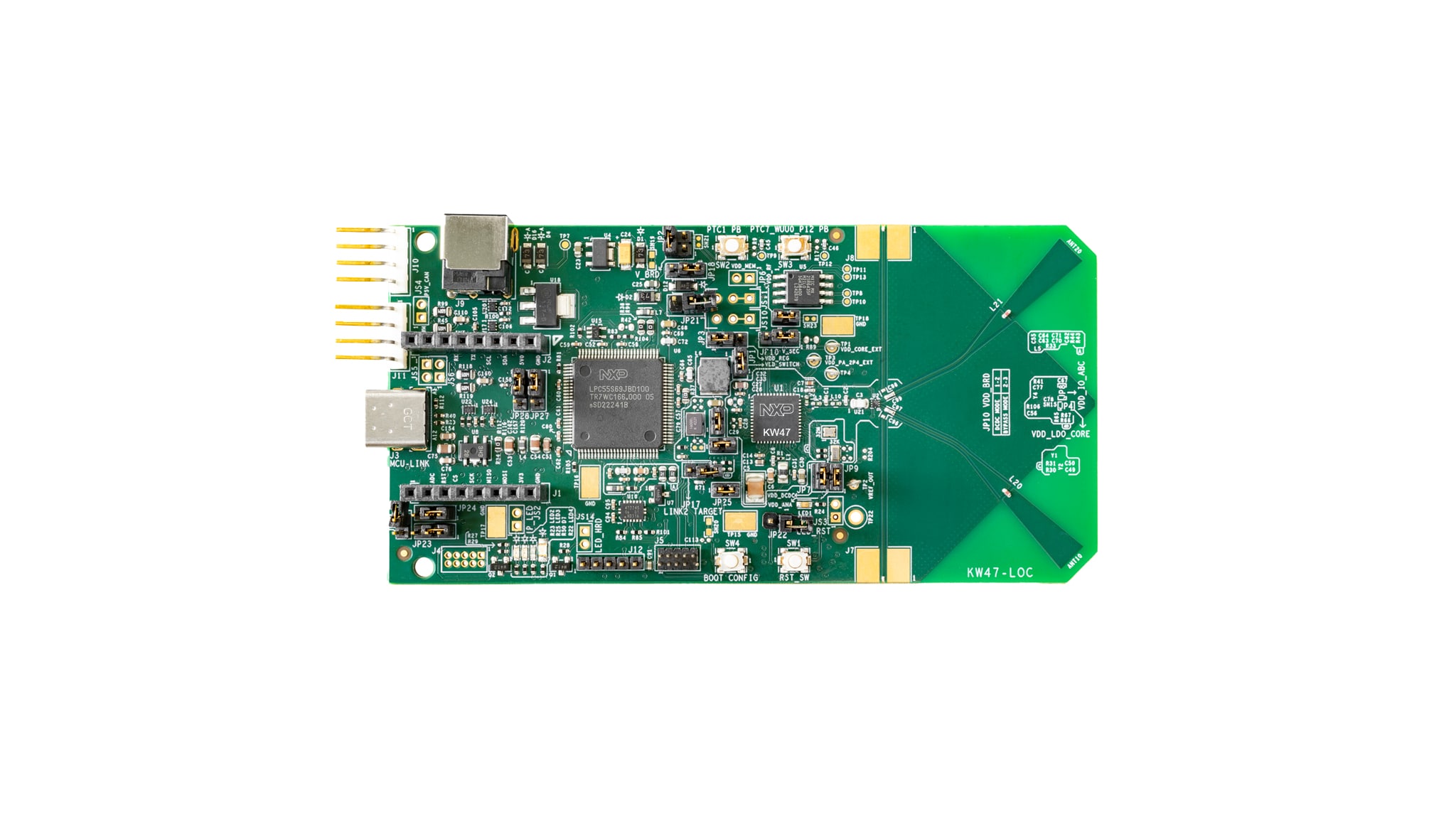
1.1 Get Familiar with the Board
The KW47-LOC board is pre-programmed with a wireless localization demo. This serves as a sanity check to verify that the device is working as expected, right out of the box.

1.2 Plug In the Board
For this step, you will need two KW47-LOC boards.
- Connect a USB TypeC cable from connector
J3to a host computer or power supply to power up each board and run the demo program. At this point, you should see the power LED turn solid green on both boards. - Open two instances of any serial terminal and connect both boards using the following configuration. For this example, Tera Term is used, but you can use any serial interface of your preference
- On one of the boards, press and hold the reset button, then press and hold SW2 button, release the reset button, then release the SW2 button
- You should now see both boards performing a wireless localization measurement session between them, with the results showing up on the serial terminals


2. Get Software
2.1 MCUXpresso Installer (Recommended)
The MCUXpresso Installer is the recommended starting point for NXP microcontroller unit (MCU) development. It provides a single, streamlined installation process that brings together all the essential tools and components you need to get up and running quickly. Whether you are using Visual Studio (VS) Code, working from the command line with GNU compiler collection GCC or using partner integrated development environment (IDEs) from IAR or Arm (Keil), the installer helps you set up the needed components. Using this resource, you can also find other tools available for use with NXP products.
This installer is ideal for developers who want a ready-to-use environment without manually downloading and configuring multiple packages. We offer the installer for the following operating systems:
- Run the Installer Double-click the downloaded "MCUXpresso Installer" file to launch the installation wizard.
- Select "Components" in the component selection screen, choose the features you want to install or update. If you already have some components installed, the wizard will show which ones are up to date and which have an update available. The recommended minimum components for this guide are MCUXpresso SDK Developer, ARM GNU Toolchain, Link Server and MCUXpresso Config Tools
- Press Install and Complete Setup Click "Install" to start the process. Once installation finishes, you can close the MCUXpresso Installer window to exit
MCUXpresso Installer simplifies setting up an embedded development environment to save time on the installation process. Learn more about MCUXpresso Installer
2.2 MCUXpresso for VS Code
MCUXpresso for VS Code supports NXP MCUs based on Arm® Cortex®-M. It allows developers the flexibility to work on projects from Zephyr, Matter or the MCUXpresso software development kit (SDK.) The VS Code extension organizes relevant information including installed SDK repositories, available debug probes, user projects and links to help you get started:
- Open VS Code Launch VS Code on your system. VS Code is automatically installed using MCUXpresso Installer under MCUXpresso SDK Developer
- Go to Extensions Marketplace Click on the Extensions icon in the left sidebar (or press Ctrl+Shift+X)
- Search for "MCUXpresso" Type "MCUXpresso," in the search bar to locate the official extension from NXP
- Install the Extension Click "Install." Once installed, restart VS Code if prompted
Explore a simpler way to work with MCUXpresso SDK, Zephyr and Matter projects. Learn more about our MCUXpresso Extension for VS Code
2.3 MCUXpresso SDK
The MCUXpresso SDK is inherently compatible with MCUXpresso for VS Code and also supports example projects for MCUXpresso IDE, IAR Embedded Workbench, Keil microcontroller development kit (MDK) and GCC with CMake + Kconfig. It includes production‑grade software with optional integrated real-time operating system (RTOS), enabling software technologies (stacks and middleware), reference software and more. Partner middleware and software can be integrated through custom west manifests.
The MCUXpresso SDK Developer component in the MCUXpresso Installer will download all required dependencies.
The NXP extension for VS Code allows you to add software repositories from four sources:
- Remote Git URL – Downloads the main repository, including all supported products
- Remote Archive Folder – Downloads an archive package for your chosen development board
- Local Git Repository – Uses an existing local Git repository previously downloaded to your PC
- Local Archive Folder – Uses an archive package previously downloaded from the SDK Builder
This section describes how to import the MCUXpresso SDK using the Remote Archive option:
- Open the MCUXpresso Extension. Click the MCUXpresso icon in VS Code
- Start Import. Go to the "QUICKSTART PANEL" tab and click "Import Repository." A new import window will appear
- Choose Remote Archive Source. Select "Remote Archive" as the source for SDK files
- Select Package and Version. Choose the development board and SDK version that you intend to use
- Set Name and Destination Folder. Select a folder to store SDKs (e.g., "C:\SDK") and enter a name for the SDK (e.g., "mcuxsdk")
- Import and Wait. Click "Import" and wait for the process to complete
Discover how to work with MCUXpresso SDK, partner middleware and flexible repository options.
2.4 MCUXpresso Config Tool
The MCUXpresso Config Tool is an integrated suite that provides pin, clock, peripheral and trusted environment execution/configuration tools to generate initialization C code for custom board support. it is integrated as a part of MCUXpresso for VS Code and as a separate tool if using a different IDE such as IAR or Keil.
Install it using our MCUXpresso Installer described above:
- Open MCUXpresso Extension. In VS Code, click the MCUXpresso icon on the Activity Bar on the left side
- Launch "Config Tools". In the "Projects" tab, select and right-click your project, then click "Open Config Tools."
See how to configure pins, clocks, peripherals and trusted execution environments with the MCUXpresso Config Tool. Learn more about our config tool
2.5 MCUXpresso Secure Provisioning Tools
NXP provides two complementary tools for secure programming and device provisioning on MCU devices. Both are fully supported for development and production workflows:
- Secure Provisioning SEC Graphical User Interface (GUI) Tool: A user-friendly graphical tool for secure programming and provisioning, ideal for both development and mass production. The GUI can be installed using the MCUXpresso Installer. Learn how to create a secure image in just 6 clicks
- Secure Provisioning Software Development Kit (SPSDK) Command-Line Interface (CLI): An open-source command-line toolkit for automation and integration, fully suitable for development and production workflows
Discover how the SEC Tool and SPSDK integrate into development and production environments. Learn more about our MCUXpresso Secure Tools
2.6 Alternative Tools
MCUXpresso for VS Code is recommended for new designs.
Still want to use a different toolchain?
To help you choose the right one, explore the MCUXpresso Suite of Software and Tools.
The MCUXpresso SDK includes support for other tools such as MCUXpresso IDE,IAR ,KEIL and command-line GCC.
3. Build and Run
3.1 Build and Flash Application Using MCUXpresso for VS Code IDE
The following steps guide you through the wireless_uart demo application using MCUXpresso for VS Code IDE. But before you get started, you must download the Remote Archive SDK referenced in Section 2.3 of the Get Software step of this guide.
Be aware that it is necessary to work with the matching narrow band unit (NBU) image for the SDK version of the application you are working with. This means that when you download your SDK, prior to loading any wireless SDK example, update your NBU image as described in the following guide: Updating NBU for Wireless Examples.
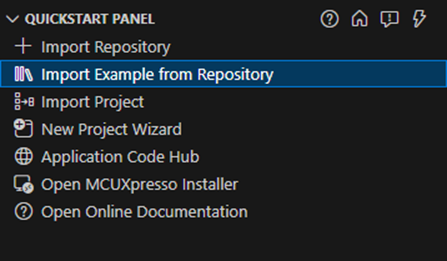
- Open Quickstart Panel: Click the MCUXpresso icon in VS Code, then select the "Quickstart Panel" tab
- Import Example: Click "Import example from Repository."
- Select Archive Folder: From the "Repository" dropdown, choose your downloaded archive folder KW47-LOC
- Choose Board: From the Board dropdown, choose "KW47-LOC"
- Select Template: Select "wireless_uart_bm" from the Template dropdown
- Select Freestanding Project and Location: Select the location which the project will be saved on your PC.
- Choose the Toolchain: Select the latest ARM GNU toolchain available
- Import: Click "Import"
- Build the Project: Expand Projects, right-click your project and select "Build Project" (or click the build icon)
- Connect Board: Plug the board into your PC using the micro-USB cable on the MCU-LINK port
- Debug the Project: Right-click the project and select "Debug" (or click the debug icon) to download the app to the board
- Open Serial Monitor: In VS Code, open "Serial Monitor," select "COMx - MCU-Link VCom Port," set baud rate to 115200, and click "Start Monitoring."
- Run and View Output: Click "Continue" to run the app and view output in the Serial Monitor. Press
SW3button to switch the BLE role to peripheral. Then pressSW2to start BLE Advertising. You should see the messages printed on the terminal - Open your NXP's IoT Toolbox app in your smartphone. Select the wireless UART icon. Select the wireless UART commen device. At this point, you should see your device's status as 'Connected' both on the IoT Toolbox app and the serial terminal
- Type and send any message on the NXP's IoT Toolbox app
- See it displayed on the serial terminal
- You can also type and send any message on the serial terminal and see it displayed on the NXP's IoT Toolbox app



3.2 Alt Tools: Build and Flash
MCUXpresso IDE offers developers an easy-to-use, eclipse-based development environment for legacy NXP MCUs that are based on Arm® Cortex®-M cores. The preferred development environment is MCUXpresso for VSCode. However, MCUXpresso IDE remains fully supported for legacy products and SDKs that require MCUXpresso IDE. For those products that are not supported by MCUXpresso IDE, please refer to the SDK Documentation . Learn how to build and flash an application with MCUXpresso IDE .
Using a different toolchain?
This demo is also available for IAR and KEIL .
4. Create
4.1 Modify an SDK Project Using the Config Tools on MCUXpresso for VS Code
The following steps will guide you through the manipulation of a general-purpose input/output (GPIO). The example sets up a GPIO as an LED that toggles on board. Using the config tool, you will change the pin output so that the LED changes color.
- Select Template: Follow the same steps as the previous section, but this time select "demo_apps/led_blinky_cm33_core0" from the Template dropdown
- Import: Click "Import"
- Build the Project: Expand Projects, then right-click your project and select "Build Project" (or click the build icon)
- Connect Board: Plug the board into your PC using the micro-USB cable on the MCU-LINK port
- Debug the Project: Right-click the project and select "Debug" (or click the debug icon) to download the app onto the board
- Run and View Output: Click "Continue" to run the app
- You should now see the BLUE LED toggling each second
- Stop Debug Session: Click on the stop debug session icon
- Open MCUXpresso Config Tool: Right-click on the project and select "Open" with MCUXpresso Config Tools
- Filter Pins: In the Pins view, uncheck "Show dedicated pins" and "Show no routed pins" to display only the routed pins (highlighted in green)
- Enable GREEN LED: Check "Show no routed pins" to view the available options. To enable the GREEN LED, search
for
PTC6and select GPIOC:GPIO,6, under the "GPIO" column - Next, configure the
GPIOpin as an output and Logical 1 asGPIOinitial state in the "Routing Details" window - Export Updated Files: Save changes by clicking "Update Code" and the new
pin_mux.candpin_mux.hfiles will be generated, overwriting the original ones. - Update Application Code: Next, you will add some additional code to the example by opening
led_blinky.cfile and adding the following line to toggle the GREEN LED. - Build the Project: Expand Projects, then right-click your project and select "Build Project" (or click the build icon)
- Debug the Project: Right-click the project and select "Debug" (or click the debug icon) to download the app to the board
- Run and View Output: Click "Continue" to run the app and view the GREEN LED and BLUE LED blinking alternately


4.2 Modify a Project Using Config Tools for Alternative Tools
MCUXpresso IDE offers developers an easy-to-use, eclipse-based development environment for legacy NXP MCUs based on Arm® Cortex®-M cores. The preferred development environment is MCUXpresso for VSCode. However, MCUXpresso IDE remains fully supported for legacy products and SDKs that require MCUXpresso IDE. For those products that are not supported by MCUXpresso IDE, please refer to the SDK Documentation . Learn how to modify a project using the Config Tools in MCUXpresso IDE .
Using a different toolchain?
This demo is also available for IAR and KEIL .
5. MCUXpresso Developer Experience
Check out each of the following sections to learn about the ecosystem provided to you for flexible protyping and development. In the video below, you will be introduced to the FRDM platform, the full-featured evaluation kit (EVK) and the compatible shields for extended capabilities. In addition, you will be guided through our Application Code Hub (ACH) portal where you will be provided numerous application examples through NXP's GitHub.
5.1 FRDM, EVK and Shields
For quick prototyping platforms, we offer both the low-cost FRDM platform and the full-featured EVK.
FRDM Development Boards come with standard form factor and headers, easy access to MCU I/Os, on-board MCU-Link debugger and a USB-C cable. Our full-featured EVKs include extended I/O and interface access, extendable with WiFi and additional MCU-Link features.
There are also many compatible Click Board and/or Arduino shields. For those that are supported with an Open Cortex®-microcontroller software interface standard (CMSIS) Pack, examples may be available in the ACH. However, this is not the case if not many of them are easy to use via serial interface such as inter-integrated circuit (I²C), serial peripheral interface (SPI) or universal asynchronous receiver/transmitter (UART), for which we provide drivers with examples in the MCUXpresso SDK.
5.2 Application Code Hub
The ACH further enhances our MCUXpresso Developer Experience by giving developers an interactive dashboard to quickly locate software. Explore the ACH today to discover additional details and the benefits of the new interactive Application Code Hub.
Software accessible from ACH is located in NXP's GitHub repository where it can be easily accessed and cloned directly from that location.
5.3 Demo Walkthrough
The following demo walks you through importing a project from ACH using a system based on the FRDM platform with a motor-control shield and a low-cost LCD. Although your evaluation board may differ from this system, the following steps can be replicated and used accordingly for all supported platforms.
5.4 FreeMASTER Run-Time Debugging Tool
FreeMASTER is a user‑friendly, real‑time debug monitor and data visualization tool that enables runtime configuration and tuning of embedded software applications. It supports non‑intrusive monitoring of variables on a running system and can display multiple variables on oscilloscope‑like views, standard widgets (gauges, sliders and more) or in text form, offering simple‑to‑use data recorders.
MCUXpresso Installer provides the FreeMASTER component for easy download and update.
Optimize, tune and visualize your system in real time. Learn more about FreeMASTER.
5.5 GUI Guider
GUI Guider's drag-and-drop editor makes it easy to utilize the many features of the light and versatile graphics library (LVGL) such as widgets, animations and styles to create a GUI with minimal to no coding. It is a user-friendly GUI development tool from NXP that enables the rapid development of high-quality displays using the open-source LVGL.
MCUxpresso Installer offers the GUI Guider component that you can easily download and update.
Utilize LVGL widgets, animations and styles with zero coding needed. Learn more about GUI Guider
Design Resources
Board Documents
Additional Resources
On this page
- 2.1
MCUXpresso Installer (Recommended)
- 2.2
MCUXpresso for VS Code
- 2.3
MCUXpresso SDK
- 2.4
MCUXpresso Config Tool
- 2.5
MCUXpresso Secure Provisioning Tools
- 2.6
Alternative Tools
- 4.1
Modify an SDK Project Using the Config Tools on MCUXpresso for VS Code
- 4.2
Modify a Project Using Config Tools for Alternative Tools