Getting Started with S32N5 Reference Design Board
Contents of this document
-
Out of the Box
-
Get Software
-
Get Familiar with the Board
-
Plug It In
-
Build and Load
Sign in to save your progress. Don't have an account? Create one.

Purchase your S32N5 Real-Time Central Compute Reference Design Board
1. Out of the Box
The S32N5 Reference Design Board (RDB) is a robust and comprehensive design featuring the S32N5 vehicle super-integration processor. The S32N5 RDB is designed not only for evaluating the S32N5 processor, but also for complete end-to-end application development. Its wide range of integrated onboard components integrated makes the S32N5 RDB is well suited for a variety of automotive, robotics and transportation applications. For example, it provides a reference platform for central compute applications that support software-defined vehicle (SDVs).
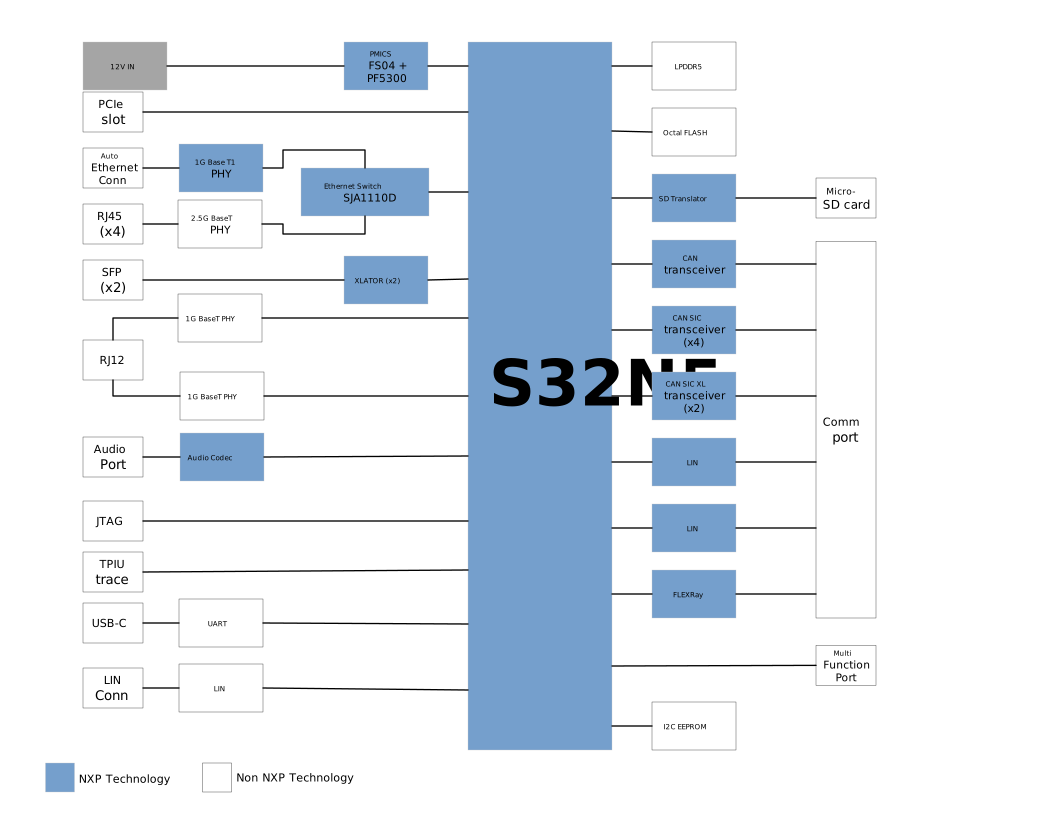
This guide will walk you through the process of setting up your S32N5 RDB and running the included demo. The diagram below lays out the components of the RDB.
1.1 Kit Contents
The RDB contents include:
- S32N5 RDB with acrylic plate
- 12 V Power Supply
- 32 GB SD card
- Instructions for lid and socket mounting
- Communication-port cable
- Multifunction cable
- 1 Gb Ethernet loopback cable
- Custom RJ12-RJ12 cable
- USB to USB-C cable
- Power cord
- Universal adapter
- Cat 6A Ethernet cable
- 10 jumper headings
1.2 Minimum System Requirements
You will need a Windows PC workstation to evaluate the board. For best results, please ensure your PC is equipped with the following:
- A serial console application, such as:
- Windows Hardware Quality Labs (WHQL)-certified FTDI Combined Driver Model (CDM) serial configuration through the FTDI chip: D2XX Drivers - FTDI
- Install the driver only if Windows does not automatically configure the COM portS32 flash programmer available in the following directory:
\S32DS.3.6\S32DS\tools\S32FlashTool\GUI\s32ft.exe
2. Get Software
2.1 Get Software
When working with this RDB, you will need to download software. All available software is available on the Automotive Software Package Manager page. You will need to install the GrayVIP executable, where upon its successful installation, there will be a prebuilt binary image needed to program the board and perform the initial boot of the S32N5 RDB. The image below shows where the GrayVIP for the S32N5 (1.0.26.0 or newer) download is located on the Automotive Software Package Manager.

Automotive Software Package Manager GrayVIP Selections
3. Get Familiar with the Board
This section outlines the RDB's features and components.
3.1 Board Features
Features of the S32N5 RDB include:
- Central compute microprocessor (MPU)
- Power management integrated circuits (PMICS): FS04, PF5300
- Multiple boot configurations
- Support for multiple Ethernet protocols
- Support for multiple communication protocols
- Support for ASIL D safety
3.2 Board Description
The S32N5 RDB features the S32N5 vehicle super integration processor. Designed to support both the processor and its integrated subsystems, the board provides a comprehensive platform for evaluation and development. Its onboard components (such as ICs), peripherals and external connectivity options allow users to efficiently evaluate device capabilities and accelerate target application development.
3.3 Board Components
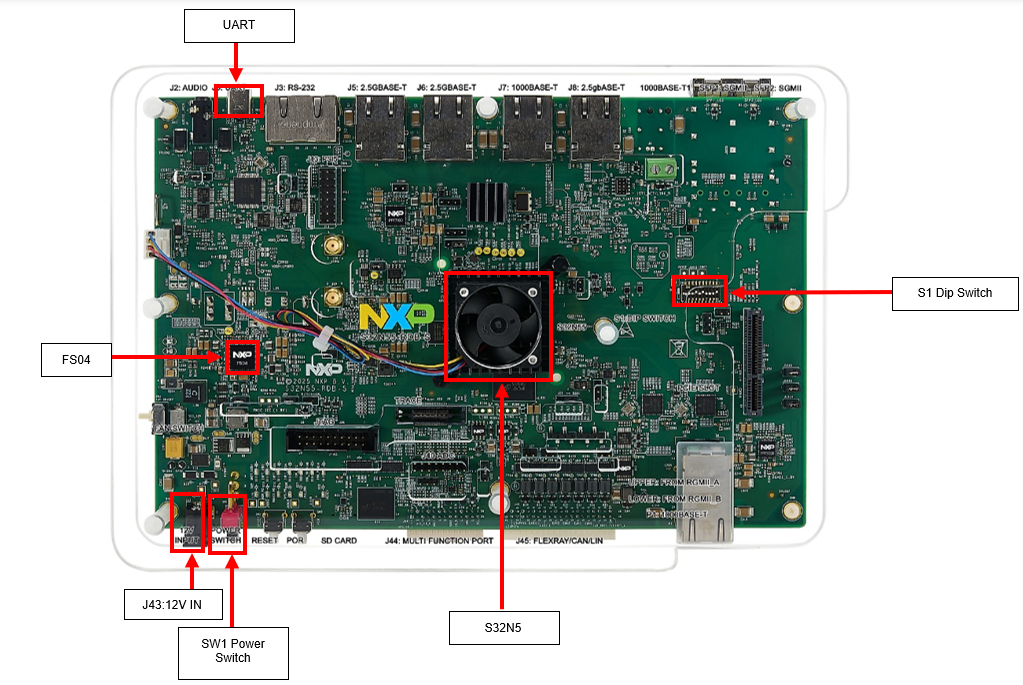
The diagram below outlines the components of the S32N5 RDB. A complete and detailed diagram can also be found in the S32N5 RDB User Guide. The components highlighted in the image below are the ones most relevant to this Getting Started guide.
4. Plug It In
This section walks you through how to hook up and configure the board.
4.1 Connect Power Supply
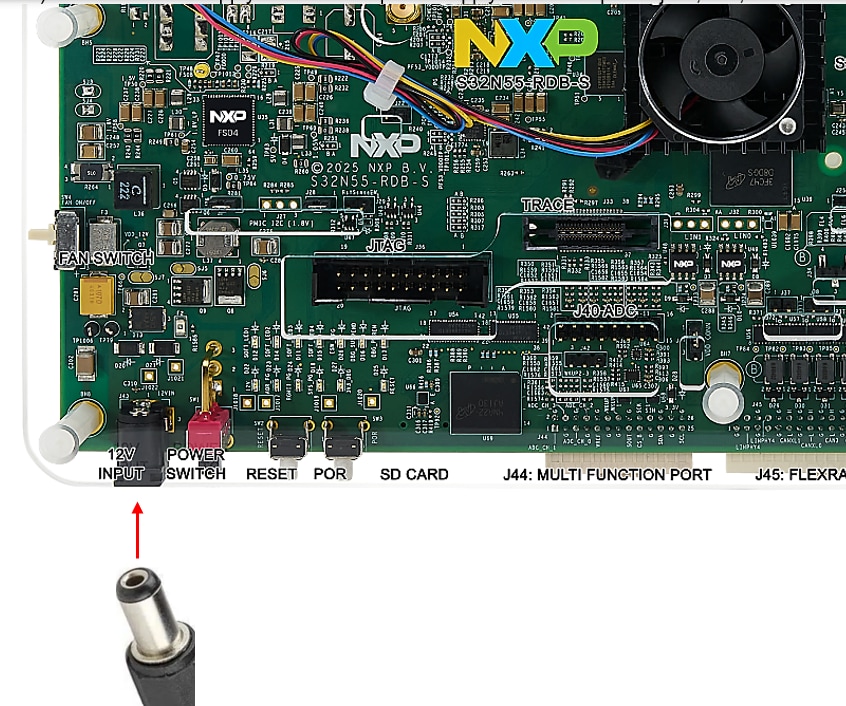
Connect the power supply to the 12 V power jack, J43, on S32N5 RDB.
4.2 Connect the USB Cable
Connect the RDB J1 port to the USB port of your Windows PC with a USB Type-C cable.
4.3 Configure the Boot Mode
Set switch S1[1:4] to 0b0000 to boot in serial mode.
4.4 Power on the Board
Turn on the power switch, SW1, on the RDB.
4.5 Program the GrayVIP Prebuilt Image
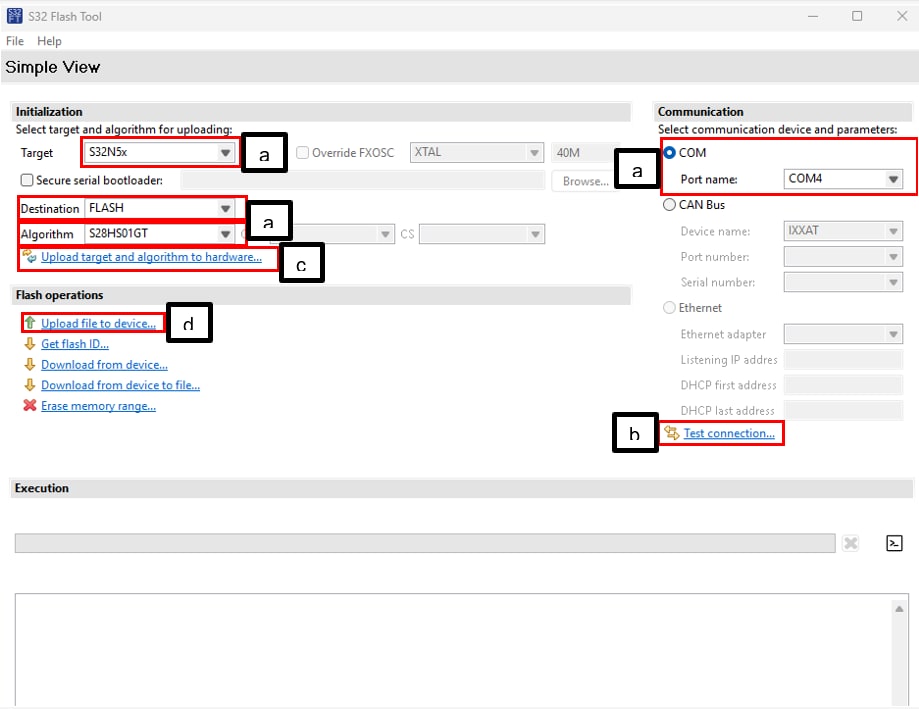
Follow the steps below to program the GrayVIP prebuilt image (GrayVIP_IVT_GrayVIPApp_Blob.bin) available in the directory <GrayVIP_install_directory>\prebuilt\gcc\binaries in XSPI flash:
- Open the S32 Flash Tool and select the following:
- Target: S32N5X
- Destination: FLASH
- Algorithm: S32HS01GT
- COM port: Third COM port
- Select "Test connection…" to verify that the COM port connection is good
- Select "Upload target and algorithm to hardware…" to load the flash algorithm
- Select "Upload file to device…" to program the image to the XSPI flash (When prompted, select the binary file referenced in step 4.5)
The image below references the configuration steps listed above corresponding to a, b, c and d respectively.
4.6 Power Off the Board
Once the programming is complete, turn off the power switch (SW1) on the S32N5 RDB.
4.7 Configure XSPI Boot Mode
Set switch S1[1:4] to 0b0001 to boot from XSPI flash.
5. Build and Load
This section walks you through how to load and run the GrayVIP software on the S32N5 RDB. Follow the instructions below to run GrayVIP on the RDB.
5.1 Setup the Serial Consoles
- Open your preferred serial console (such as Tera Term or MobaXterm), and four COM ports should appear
- Open the third COM port and set the baud rate to 230400
- Additionally, open the lowest-numbered COM port and set the baud rate to 115200
5.2 Turn on the S32N5 RDB
Using the SW1 power switch, turn on the S32N5 RDB.
5.3 Running GrayVIP
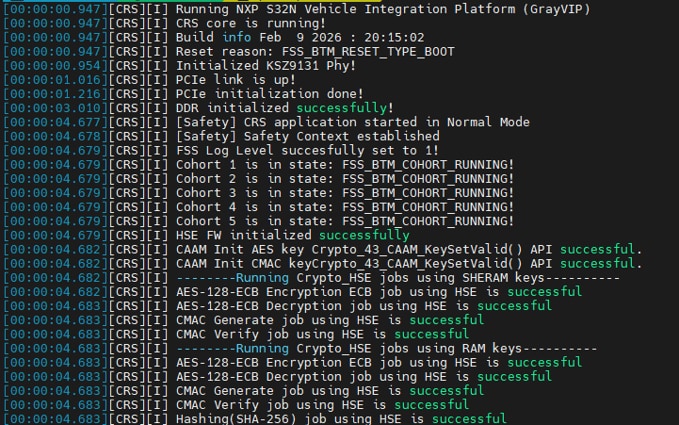
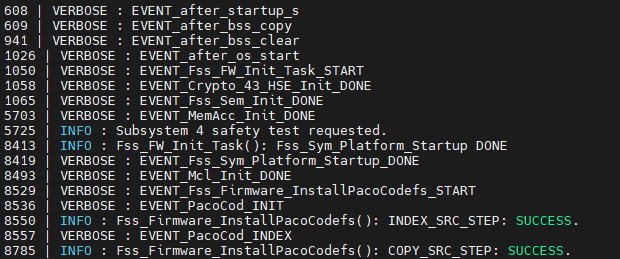
After the XSPI boots, the GrayVIP software is executed. The serial console shows output logs of the GrayVIP software running on the RDB (see examples below).
Design Resources
Board Information
Information for the RDB can be found in the following documentation:
Additional References
In addition to the S32N5 RDB page, you may also find the following resources useful: