Getting Started with FRDM-IMX95
Contents of this document
-
Out of the Box
-
Get Software
-
Build and Run
-
Developer Experience
Sign in to save your progress. Don't have an account? Create one.
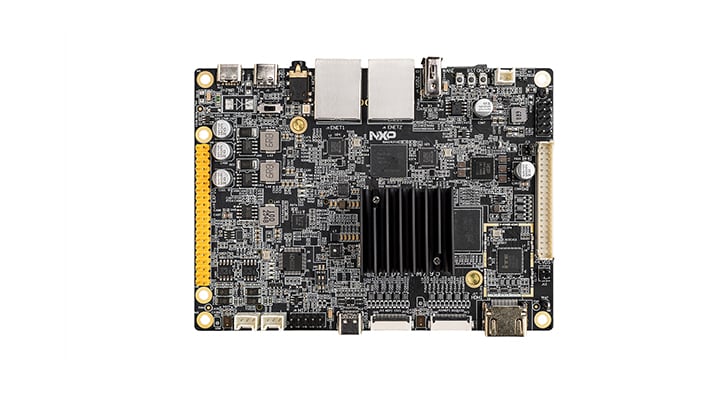
Purchase your FRDM i.MX 95 Development Board
1. Out of the Box
The following section describes the steps to boot the FRDM-IMX95.
Development kit contains:
- FRDM i.MX 95 Development Board (FRDM-IMX95)
- Cable: Assembly, USB Type-C male to Type-C male cable
- Cable: Assembly, USB Type-C male to Type-A male cable
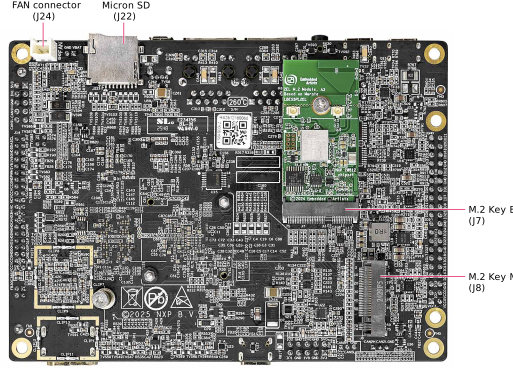
- M.2 module: 2EL M.2 module; Wi-Fi / Bluetooth / IEEE802.15.4 (NXP’s IW612 inside)
- Software: Linux BSP image programmed in eMMC
- Quick start guide
Get started developing your application on the FRDM-IMX95 with the out-of-the-box video. For more information, please visit the i.MX 95 applications processor Documentation.
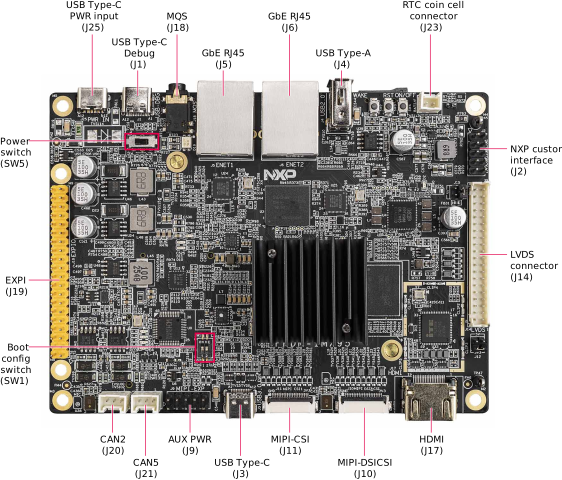
1.1 Get Familiar with the Board
1.2 Boot from eMMC
The FRDM-IMX95 comes with a pre-built NXP Linux binary demo image flashed on the eMMC. Without modifying the binary inside, booting from the eMMC provides a default system with certain features for building other applications on top of Linux.
To understand more about NXP’s Embedded Linux®, continue reading the next sections.
1.3 Connect USB Debug Cable
Connect the supplied USB Type-C to Type-A cable to the debug port J1, then connect the other end of the cable to a host computer.
Four UART connections will appear on the host computer: One for the Arm® Cortex®-A55, one for the Arm Cortex-M33 core and another for the Arm Cortex-M7 core system debugging.
If you are unfamiliar with terminal applications, please view the section Debug Terminal Setup before continuing to step 1.4.
To debug under Linux, make sure CH344 Linux driver is installed.
1.4 Boot Switch Setup
SW1 [1-2] is the boot configuration switch. By default, the boot device is eMMC/uSDHC1.
| Boot device | BOOT_MODE3 | BOOT_MODE2 |
BOOT_MODE1 SW1-1
|
BOOT_MODE0 SW1-2
|
|---|---|---|---|---|
| Serial downloader | x | 0 | 0 | 1 |
| USDHC1 8-bit eMMC 5.1 | x | 0 | 1 | 0 |
| USDHC2 4-bit SD3.0 | x | 0 | 1 | 1 |
1.5 Connect the HDMI Display
To experience the user interface provided with the image binary, connect a monitor via the HDMI connector J17.
1.6 Connect Power Supply
Connect the USB PD adapter using a USB Type-C male to Type-C male cable to the power connector J25, and power up the board by turning on switch SW5.
The processor starts executing the bootable image from eMMC. Then, the U-Boot execution should begin automatically.
Information is printed in the serial console for the Arm® Cortex®-A55. If you do not stop the U-Boot process, it continues to boot the kernel.
As the board boots up, you will see penguins appear in the upper left-hand corner of the monitor, and then you will see the Linux terminal Icon on the top left and timer on right top corner. Congratulations, you are up and running.
2. Get Software
The i.MX Linux Board Support Package (BSP) is a collection of binary files, source code and support files that are used to boot an Embedded Linux image on a specific i.MX development platform.
Current releases of Linux binary demo files can be found on Linux download page. Additional documentation is available in the i.MX Linux documentation bundle under the Linux sections of the i.MX Software and Development Tools.
2.1 Overview
FRDM-IMX95 supports booting from eMMC and SD card.
This Getting Started guide only outlines a few methods of transferring the Linux BSP image to an SD card. Experienced Linux developers can explore other options if desired.
2.2 Download NXP Linux BSP Pre-Built Image
The latest pre-built images for the FRDM-IMX95 are available on the Linux download page under the most recent Linux version.
The pre-built NXP Linux binary demo image provides a typical system and basic set of features for using and evaluating the processor. Without modifying the system, the users can evaluate hardware interfaces, test SoC features and run user space applications.
2.3 Burn NXP Linux BSP Image Using Universal Update Utility (UUU)
In addition to the connections from Section Out of the Box, connect the USB1 J3 to the host machine using the proper USB cable.
Turn off the board. Refer to section 1.4 Boot Switch Setup and configure the board to boot in serial download protocol (SDP) mode.
Depending on the OS used in the host machine, the way to transfer the Linux BSP image onto an SD card can vary. Choose an option below for detailed instructions:
Linux®
Install UUU on Linux Distro
Download the latest stable files from UUU GitHub page . If you need further assistance with UUU, please refer to this extensive tutorial .
uuulibusb1(via apt-get or any other package manager)
Burn the NXP Linux BSP Image to the Board
By default, this procedure flashes the image to the SD card. Check the UUU GitHub page for reference on how to flash the image to other devices.
Open a terminal application and change the directory to the location where uuu and the latest Linux distribution for FRDM-IMX95 are located. Add execution permission to the uuu file and execute it. uuu will wait for the USB device to connect.
$ chmod a+x uuu
$ sudo ./uuu -b sd_all imx-boot-imx95-15x15-lpddr4x-frdm-sd.bin-flash_all imx-image-full-imx95evk.wic
Confirm that FRDM-IMX95 boot mode is switched to serial download mode, and turn on the board, uuu will start to flash the images to the board.
When it finishes, turn off the board and the terminal. If you need further assistance configuring the board to boot from an SD card, please refer to section 1.4 Boot Switch Setup.
Windows®
Install UUU on Windows Distro
Download the latest stable files from UUU GitHub page. If you need further assistance with UUU, please refer to this extensive tutorial .
uuu.exe- Serial USB drivers (depending on your board and Windows installation - check Windows Device Manager)
Burn the NXP Linux BSP Image to the Board
By default, this procedure flashes the image to the SD card. Check the UUU GitHub page for reference on how to flash the image to other devices.
Open the command prompt application and navigate to the directory where the uuu.exe file and the Linux release for the FRDM-IMX95 are located.
.\uuu.exe -b sd_all imx-boot-imx95-15x15-lpddr4x-frdm-sd.bin-flash_all imx-image-full-imx95evk.wicConfirm that FRDM-IMX95 boot mode is switched to serial download mode, and turn on the board, uuu will start to flash the images to the board.
When it finishes, turn off the board and the terminal. If you need further assistance configuring the board to boot from an SD card, please refer to section 1.4 Boot Switch Setup.
3. Build and Run
In the section, a brief guide of how to build Yocto BSP image for FRDM-IMX95 is introduced.
3.1 FRDM-IMX95 Yocto BSP
The FRDM-IMX95 BSP release is quarterly released with i.MX family Linux BSP release. To build FRDM-IMX95 image from source code, please first check i.MX Yocto Project User’s Guide to get familiar with Yocto project and Yocto build. Then please follow the steps below to build image for FRDM-IMX95. Here LF6.12.49_2.2.0 BSP is used as an example.
1. Download the latest i.MX family Linux BSP Release:
$ repo init -u https://github.com/nxp-imx/imx-manifest -b imx-linux-walnascar -m imx-6.12.49-2.2.0.xml
$ repo sync
2. Yocto Project Setup:
$ MACHINE=imx95-15x15-lpddr4x-frdm DISTRO=fsl-imx-xwayland source imx-setup-release.sh -b frdm-imx953. Build images:
$ bitbake imx-image-full4. Flashing SD card image:
$ zstdcat imx-image-full-imx95-15x15-lpddr4x-frdm.rootfs.wic.zst | sudo dd of=/dev/sdx bs=1M && syncOr using uuu to burn image into SD card:
$ uuu -b sd_all imx-image-full-imx95-15x15-lpddr4x-frdm.rootfs.wic.zst5. Change boot switch SW1[1:2] to “11” to select SD card boot, insert the SD card and power up the FRDM-IMX95 board.
4. Developer Experience
To enable faster development for users of all skill levels, NXP provides extensive example applications to showcase various features and capabilities of the platform.
4.1 Application Code Hub
The Application Code Hub (ACH) repository enables engineers to easily find microcontroller and processor software examples, code snippets, application software packs and demos developed by NXP in-house experts. This space provides a quick, easy and consistent way to find microcontrollers and processor applications.
ACH provides filter and search options to quickly find specific applications. With the support of Git capabilities, there is an easy way to import and use applications within user’s development environments.
To learn more details of ACH, please visit this link.
To find available example applications for FRDM-IMX95, please select “i.MX” in Device Families as shown below.
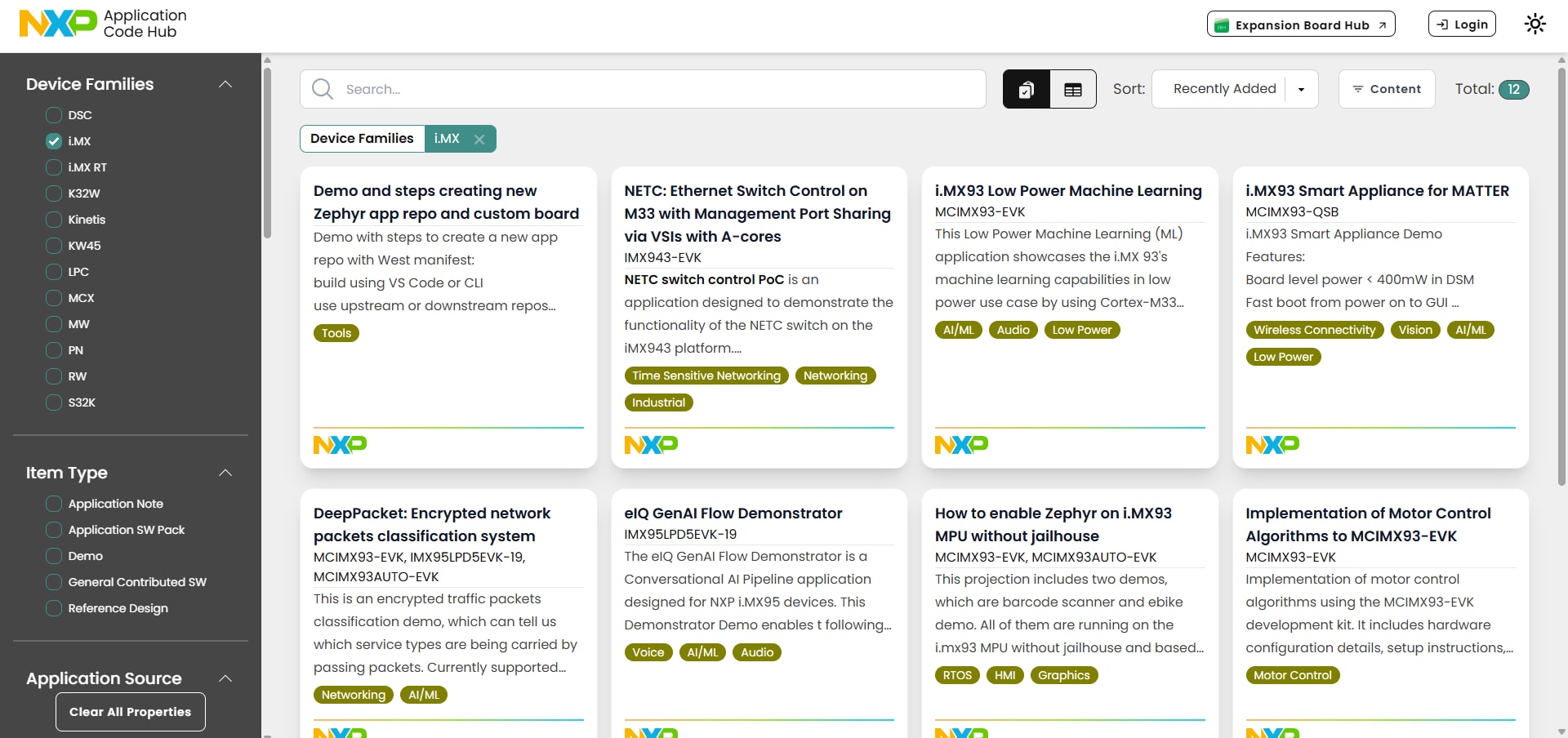
Select each example application to check for details.
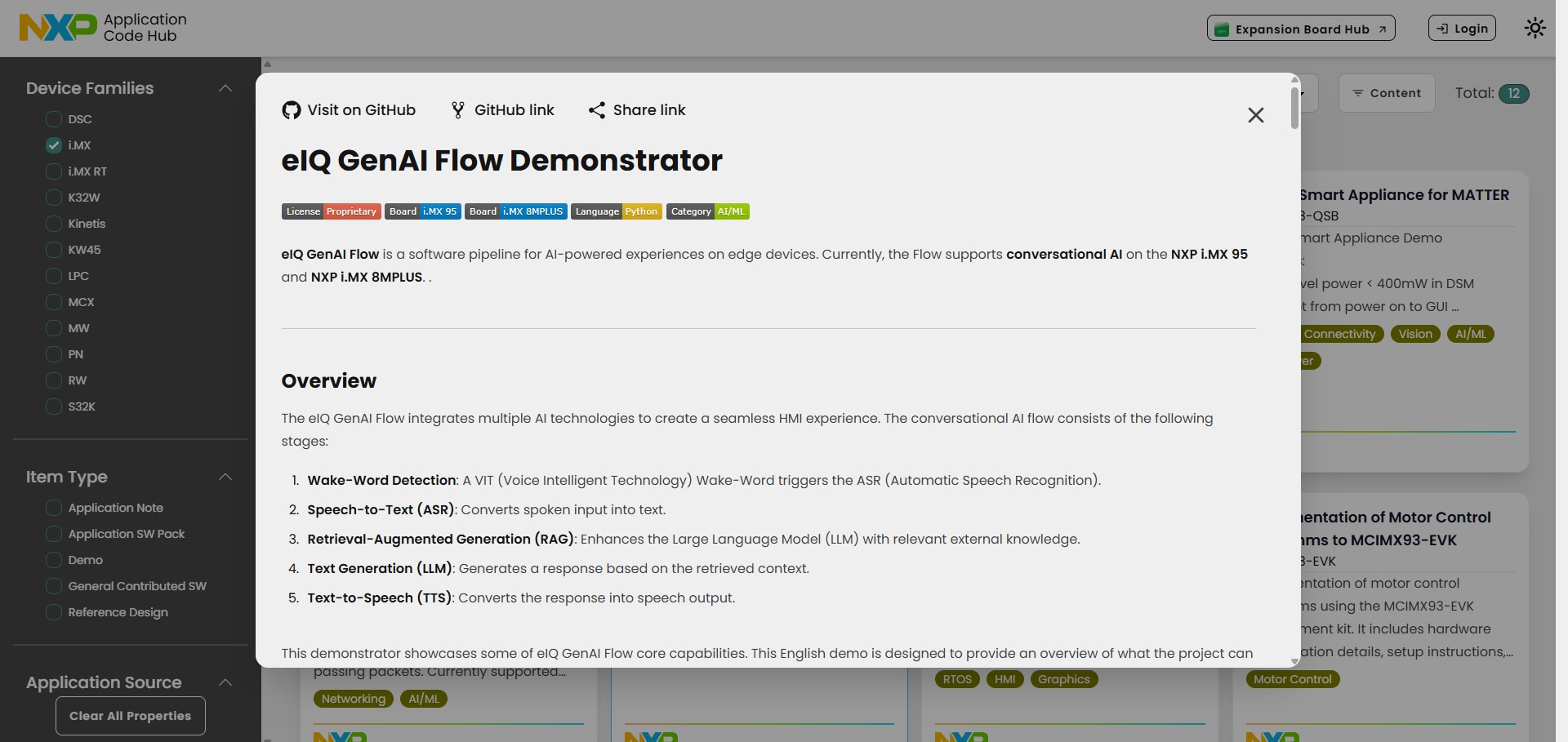
To get the source code of each example application, click the “Visit on GitHub” button on the top to visit the code repository in NXP GitHub.

4.2 GoPoint for i.MX Applications Processors
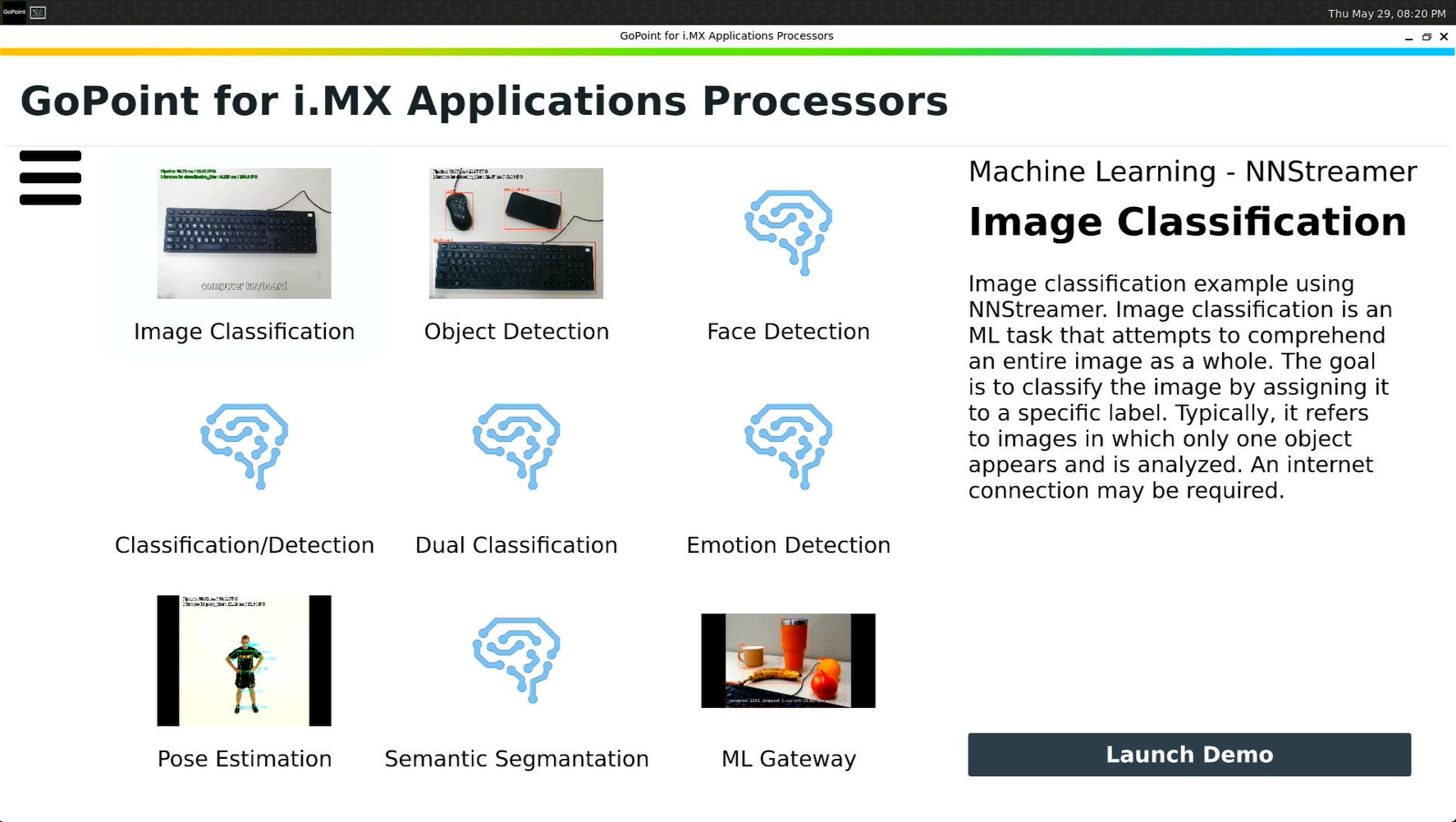
The GoPoint for i.MX Application Processors is a user-friendly application launches pre-built applications packed with the Linux BSP, giving users an excellent out-of-the-box experience and hands-on experience with i.MX SoC's capabilities. GoPoint highlights advanced features while providing practical solutions for implementation, with source code and build recipes for the applications provided in GitHub .
To learn more details of GoPoint, please visit this link.
For FRDM-IMX95, GoPoint is included in the BSP release by default. To open the GoPoint GUI launcher, press the “GoPoint” displayed on the top left-hand corner of the screen after the FRDM-IMX95 boot up as shown below.
Available example applications are shown with icons of screenshot for each application. When selecting the example application, a brief description of this example application is shown on the right side. To launch the currently selected application, click the “Launch Demo” button.
After an application is started, it can then be force-quit by clicking the “Stop Current Demo” button in the launcher (appears once the application is started).
For more details of the usage for each application, please refer to GoPoint for i.MX Applications Processors User's Guide.
1. Debug Terminal Setup
Debug Terminal in Linux
Serial Communication Console Setup
The Linux USB serial drivers are available at CH344 Linux Drivers .
On the command prompt of the Linux host machine, run the following command to determine the port number:
ls /dev/ttyCH343USB*One port is for Arm® Cortex®-M7, one port is for Arm® Cortex®-A55, and one port is for Arm® Cortex®-M33.
Minicom
Use the following commands to install and run the Minicom program:
- Install Minicom using Ubuntu package manager
- Launch Minicom using a console window using the port number determined earlier
$ sudo apt-get install minicom$ sudo minicom /dev/ttyCH343USB * -s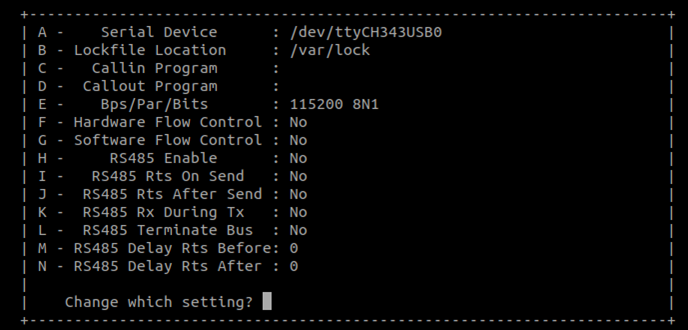
Configure Minicom as shown in Figure and Exit configure.
Debug Terminal in Windows
Serial Communication Console Setup
The WCH USB converter chip on FRDM-IMX95 enumerates 4 serial ports. One port is for the serial console communication from Arm® Cortex®-M7, one port is for the Arm® Cortex®-A55, and another port is for the Arm® Cortex®-M33. The USB serial drivers are available at CH344 Windows Driver .
Tera Term
Tera Term is an open-source terminal emulation application. This program displays the information sent from the NXP development platform’s virtual serial port.
- Download Tera Term. After the download, run the installer and then return to this webpage to continue.
- Launch Tera Term, select the serial option. Assuming your board is plugged in, there should be a COM port automatically populated in the list.
- Configure the serial port settings (using the COM port number identified earlier) to 115200 baud rate, 8 data bits, no parity and 1 stop bit. To do this, go to Setup → Serial Port and change the settings.
- Verify that the connection is open.
PuTTY
PuTTY is a popular terminal-emulation application. This program displays the information sent from the NXP development platform’s virtual serial port.
- Download PuTTY. After the download, run the installer and then return to this webpage to continue.
- Launch PuTTY by either double clicking on the executable file you downloaded or from the Start menu, depending on the type of download you selected.
- Configure In the window that launches. Select the Serial radio button and enter the COM port number that you determined earlier. Also enter the baud rate, in this case 115200.
- Click “Open” to open the serial connection. Assuming the board is connected, and the correct COM port is entered, the terminal window opens. If the configuration is not correct, PuTTY alerts you.
2. Cortex-M7 Enablement
Cortex-M7 Enablement
FRDM-IMX95 has one general-purpose Arm® Cortex®-M7 running up to 800 MHz, which can be used for real-time and low-power processing. For how to build program and run program on Cortex-M7 core, developers can refer to application note AN14748 “How to Run Application on M7 Core of i.MX 95”.
For how to debug program running on Cortex-M7 core, developers can refer to application note AN14120 “Debugging Cortex-M with VS Code on i.MX 8M, i.MX 8ULP, and i.MX 9”.
3. Deploy ML models on NPU
FRDM-IMX95 has a Neural Processing Unit (NPU) operating at up to 2TOPS to accelerate neural-network machine learning inference. For more details of the hardware architecture of NPU, please check i.MX 95 Applications Processor Reference Manual. For more details of software architecture of NPU, please check i.MX Machine Learning User's Guide.
Model Quantization
To be accelerated by the NPU, the neural-network operators must be quantized to 8-bit unsigned or signed. For model quantization, please download latest eIQ toolkit and check the user guide.
Model Conversion
To be accelerated by the NPU, the quantized model needs to be converted using the neutron-converter tool. The latest neutron-converter tool is included in the eIQ Neutron SDK, which can be downloaded from eIQ toolkit page. Please follow the user guide in the eIQ Neutron SDK to convert the model for i.MX95.
Model Inference
To evaluate NN model’s performance on NPU, the simplest method is to use the benchmark_model tool in Linux BSP. It uses random data as input and gives average inference time for a given number of runs. Here is an example:
root@imx95frdm:~# /usr/bin/tensorflow-lite-2.19.0/examples/benchmark_model --graph=/usr/bin/tensorflow-lite-2.19.0/examples/mobilenet_v1_1.0_224_quant_converted.tflite $ --external_delegate_path=/usr/lib/libneutron_delegate.soFor how to write code in c++ & python to run model inference on NPU, please refer to example applications in GoPoint .
4. Using System Manager
Using System Manager
FRDM-IMX95 has one Arm® Cortex®-M33 running up to 333 MHz, which is dedicated to running a system manager (SM). SM is an application provided by NXP, intended to manage low-level resources for the other processors in the SoC.
The Cortex-M33 is the boot core, runs the boot ROM, which loads the SM (and other boot code), and then branches to the SM. The SM then configures some aspects of the hardware such as isolation mechanisms and then starts other cores in the system. After starting these cores, it enters a service mode where it provides access to clocking, power, sensor, and pin control via a client RPC API based on ARM's System Control and Management Interface (SCMI) . To facilitate isolation between cores, the SM partitions the SoC into logical machines (LM) which have statically configurable access rights to both hardware and RPC API calls.
SM is delivered in source form in Github imx-sm repository, allowing customers the freedom to modify and recompile its code to suit their needs. However, NXP advises that any changes made to extend SM functionality must be limited to the customer board layer. To extend SM functionality, developers can refer to application note AN14478 “Extending i.MX 9 System Manager Functionality with Board Controls”.
5. Using VPU
Using VPU
FRDM-IMX95 has a Video Processing Unit (VPU) including both decoder and encoder, which supports H.264, H.265 4Kp30 decoding, and H.264, H.265 4Kp30 encoding.
To test the VPU, the simplest way is to play an MP4 video file using following command:
root@imx95frdm:~# gplay-1.0 MP4_EXAMPLE_FILE.mp4The gplay-1.0 will automatically choose VPU as video decoder and play the MP4 file on the Weston desktop. You should be able to see the video playing on the HDMI display if connected.
For more details of how to use VPU API in applications, please check “i.MX VPU API Reference Manual”.
6. Using ISP
Using ISP
FRDM-IMX95 has 500 Mpixel/s MIPI_CSI and ISP (2x 4 lane, 2.5 Gbps/lane) with PHY (1 mux with DSI) Camera interface, which supports up to 1x 4Kp60fps, 2x 4Kp30, 4x 1080p60, or 8x 1080p30 cameras with MIPI virtual channels.
To test the ISP, you can use EXPI-S08A20 camera with FRDM-IMX95.
u-boot=> setenv fdtfile imx95-15x15-frdm-os08a20-isp.dtb
u-boot=> boot
After FRDM-IMX95 boots up with OS08A20 camera connected, please run following command to setup the environment and open camera preview of OS08A20:
root@imx95frdm:~# export LIBCAMERA_IPA_MODULE_PATH=/usr/lib/libcamera/ipa
root@imx95frdm:~# export LIBCAMERA_PIPELINES_MATCH_LIST='nxp/neo,uvc'
root@imx95frdm:~# export LIBCAMERA_IPA_CONFIG_PATH=/usr/share/libcamera/ipa
root@imx95frdm:~# export CAMERA0="/base/soc/bus@42000000/i2c@42540000/os08a20_mipi@36"
root@imx95frdm:~# gst-launch-1.0 libcamerasrc camera-name="${CAMERA0}" ! video/x-raw, width=3840, height=2160, format=YUY2 ! queue ! waylandsink
If a camera preview is shown on the HDMI display with correct view, then it proves ISP is working fine.
For more details of ISP usage, please check “i.MX 95 Camera Porting Guide”.
7. Using GPU
Using GPU
FRDM-IMX95 has a Mali-G310 Graphics Processing Unit (GPU) operating at up to 60 GFLOPS (high-precision), which supports OpenGL ES 3.2, OpenCL 3.0, Vulkan 1.2.
To test the GPU performance, the simplest way is to run glmark2-es2-wayland benchmark as following command:
root@imx95frdm:~# glmark2-es2-wayland --fullscreenBesides this, there are many other GPU example applications installed in the FRDM-IMX95 default rootfs under folder /opt/imx-gpu-sdk/. You can try them by directly executing the binary or launch the application from GoPoint.
For more details of GPU usage, please check “i.MX Graphics User’s Guide”.
8. Fast Boot
Fast Boot
In certain use cases, there is requirement for the device boot time, which means the device needs to complete booting in a given time limit.
To optimize the boot time, FRDM-IMX95 supports falcon mode in U-Boot. Falcon mode is a feature in U-Boot that enables fast booting by allowing SPL to directly start the Linux kernel. It completely skips the U-Boot loading and initialization, with the effect of reducing the time spent in the bootloader.
For how to enable falcon mode and further optimize boot time, please check application note AN14093 “Fast Boot on i.MX 8M and i.MX 9 Using Falcon Mode and Kernel Optimizations”.