- Analog Toolbox
- Getting Started with the PCAL6524EV-ARD Evaluation Board
Getting Started with the PCAL6524EV-ARD Evaluation Board
Contents of this document
-
Out of the Box
-
Get Hardware
-
Get Software
-
Configure Hardware
Sign in to save your progress. Don't have an account? Create one.
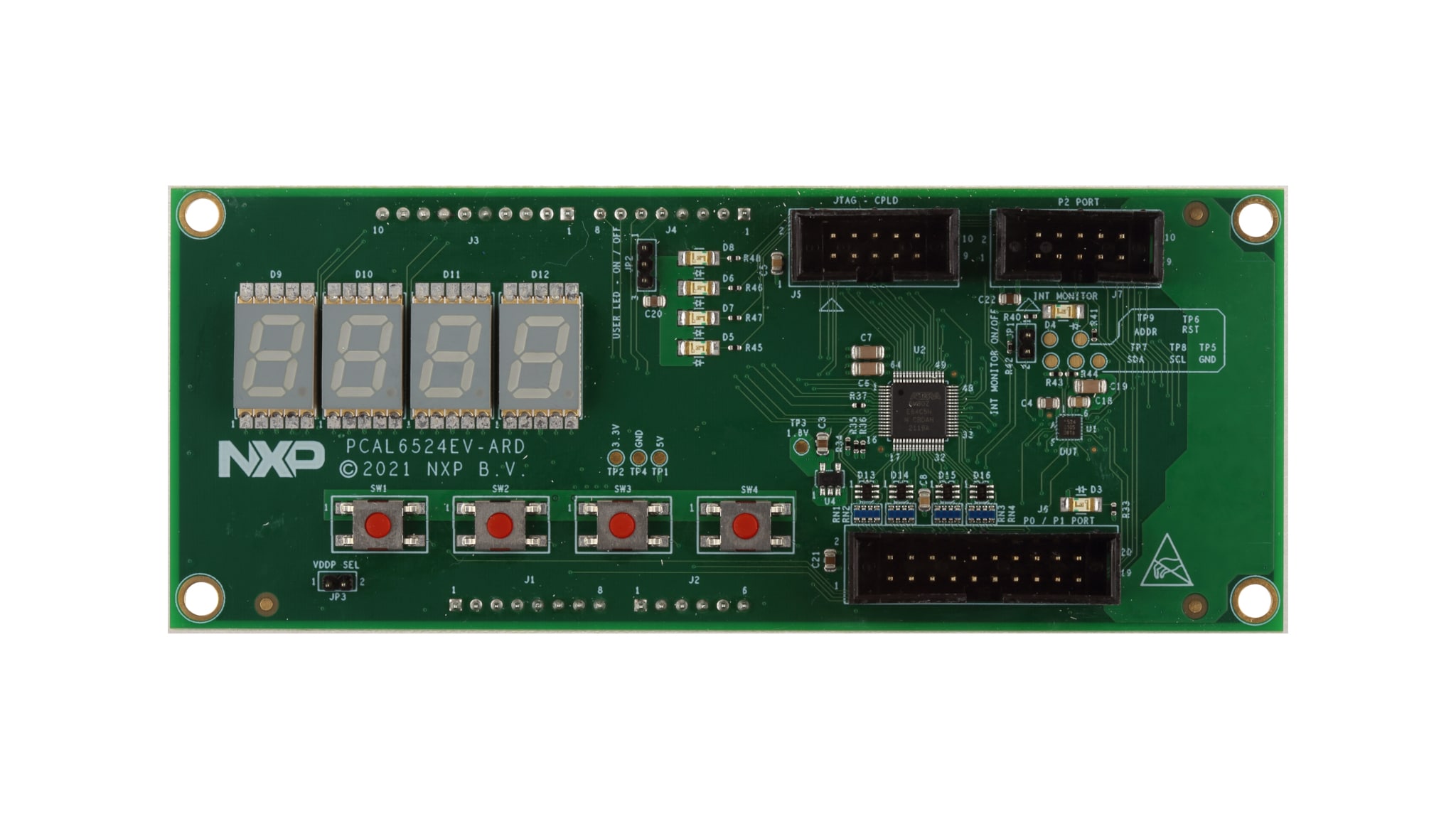
Purchase your PCAL6524EV 24-Bit GPIO Arduino® Shield
1. Out of the Box
The NXP analog product development boards provide an easy-to-use platform for evaluating NXP products. The boards support a range of analog, mixed-signal and power solutions. They incorporate monolithic integrated circuits and system-in-package devices that use proven high-volume technology. NXP products offer longer battery life, a smaller form factor, reduced component counts, lower cost and improved performance in powering state-of-the-art systems.
This page will guide you through the process of setting up and using the PCAL6524EVARD board.
1.1 Kit Content and Packing List
The PCAL6524EV-ARD contents include:
- Assembled and tested evaluation board in an antistatic bag
- Quick Start Guide
1.2 Assumptions
Familiarity with the I²C bus is helpful but not required.
1.3 Static Handling Requirements
CAUTION
This device is sensitive to electrostatic discharge (ESD). Therefore care should be taken during transport and handling. You must use a ground strap or touch the PC case or other grounded source before unpacking or handling the hardware.
1.4 Minimum System Requirements
This evaluation board requires a Windows PC workstation. Meeting these minimum specifications should produce great results when working with this evaluation board.
- Computer with Windows 10
- One USB port (either 3.0 or 2.0 or 1.1 compatible)
- One of three EVK boards (MIMXRT1050-EVK, LPC55S69-EVK, 8MMINILPD4-EVK) along with the associated firmware / GUI software
- USB cable for power and data connection between PC and EVK board (if not included in the EVK package)
2. Get Hardware
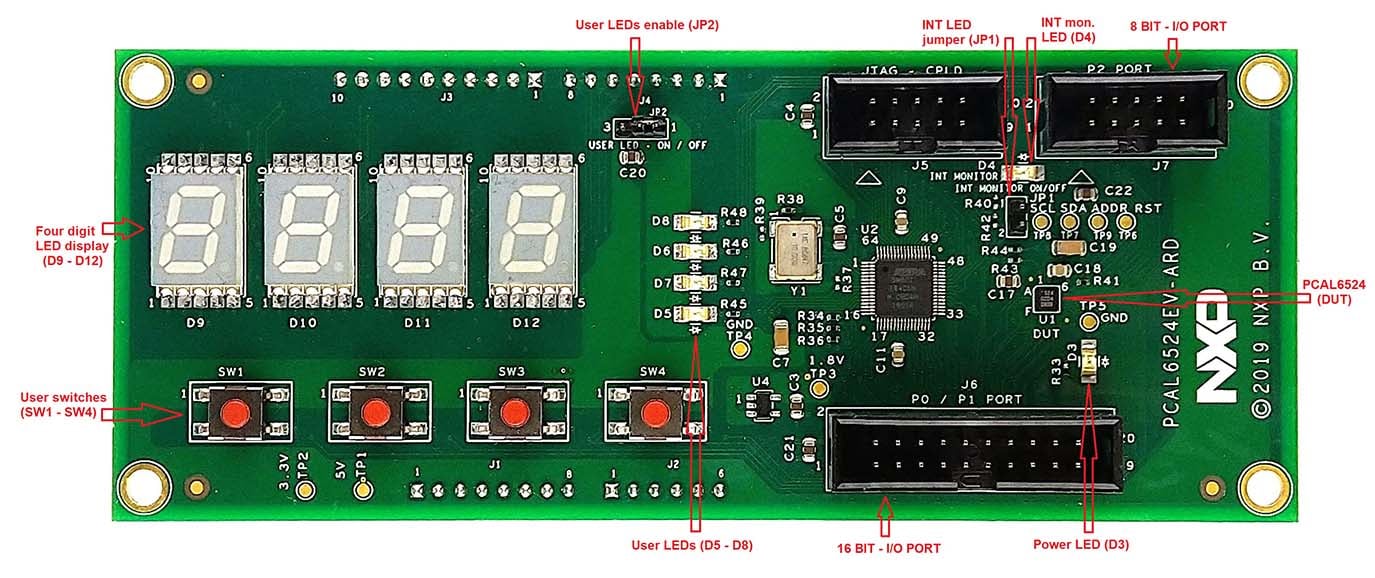
2.1 Board Features
- I/O connector for external access to IC input-output pins
- Four user switches connected to I/O pins of the IC
- Four user LEDs connected to I/O pins of the IC
- On-board LED display controlled from the I/O pins of the IC
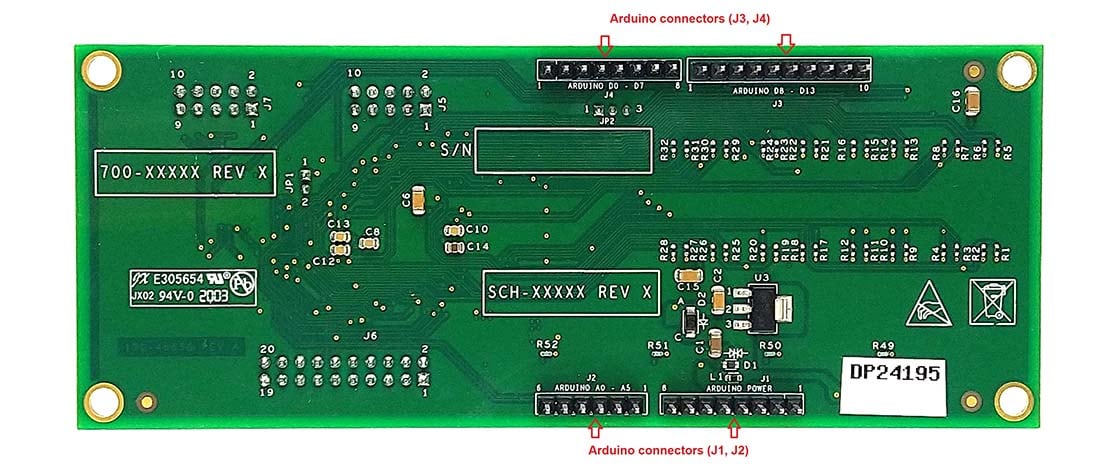
- Equipped with Arduino Uno R3 port for direct connection with Arduino devices
- Fully compliant with IMXRT1050 EVK board, including GUI (Windows 10)
- Fully compliant with LPCXpresso55S69 dev. board, including GUI (Windows 10)
- Compliant with i.MX Mini LPDDR4 EVK board, including GUI (Windows 10)
Note: For i.MX Mini LPDDR4 EVK board, it is necessary to use IMX8MMINI-IARD interposer board between the EVK and PCAL6524EV-ARD daughter board (see IMX8MMINI-IARD User Manual).
2.2 Board Description
The evaluation board is built around the PCAL6524, ultra-low voltage translating 24-bit I²C-bus/SMBus I/O expander with interrupt output, reset and configuration registers, produced by NXP Semiconductors. The evaluation board serves as a daughter card that can be connected through an Arduino port to various Arduino compatible (including original Arduino Uno R3) EVK / mother boards for testing and measuring the characteristics of the PCAL6524 device under test (DUT).
3. Get Software
3.1 Installing and Configuring Software Tools
PCAL6524EV-ARD evaluation board is designed and built as a daughter board able to work in conjunction with a mother board equipped with an Arduino port. The board was built to be fully compatible with the following NXP Evaluation (EVK) boards:
- IMXRT1050 EVK board
- LPCXpresso55S69 development board
- i.MX 8M Mini LPDDR4 EVK board
For the Ringo software to work, the FT232H driver for the USB-I²C interface needs to be installed. This installation happens automatically when you connect the interface for the first time via USB. If the driver is not installed automatically, you can use the included drivers to do this manually (a video on the get started page shows how to do this).
Each evaluation / development board benefits by firmware support which can be downloaded from the NXP company site. Before starting, the EVK motherboard must be programmed with the corresponding firmware package. Additionally, a GUI application (Windows 10) is available for download from the NXP site, allowing rapid testing and operation of PCAL6524EV-ARD daughterboard through the one of the above mentioned EVK. The GUI application is common for all three EVKs and for the PCAL6xxx I/O expander development card family, manufactured by NXP (PCAL6408A, PCAL6416A, PCAL6524 and PCAL6534 ICs).
For details regarding installation of the EVK firmware and GUI host software on PC, download EVK_Firmware_And_GUI_Install_Guide_For_Arduino_Boards instruction file from NXP site. Once the software is installed, the first step is to select the correct combination EVK – PCAL6524EV-ARD daughter card and then the board can be controlled from the GUI interface.
4. Configure Hardware
4.1 Using the PCAL6524EV-ARD with an IMXRT1050 EVK Board
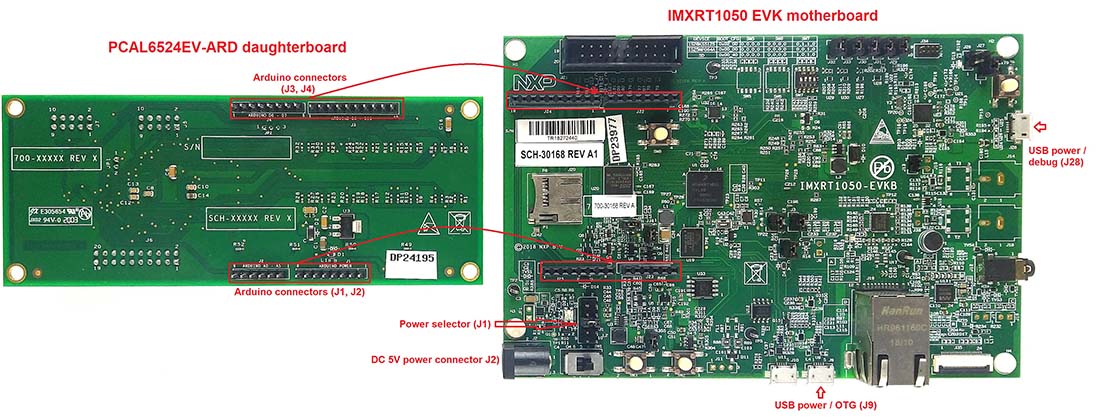
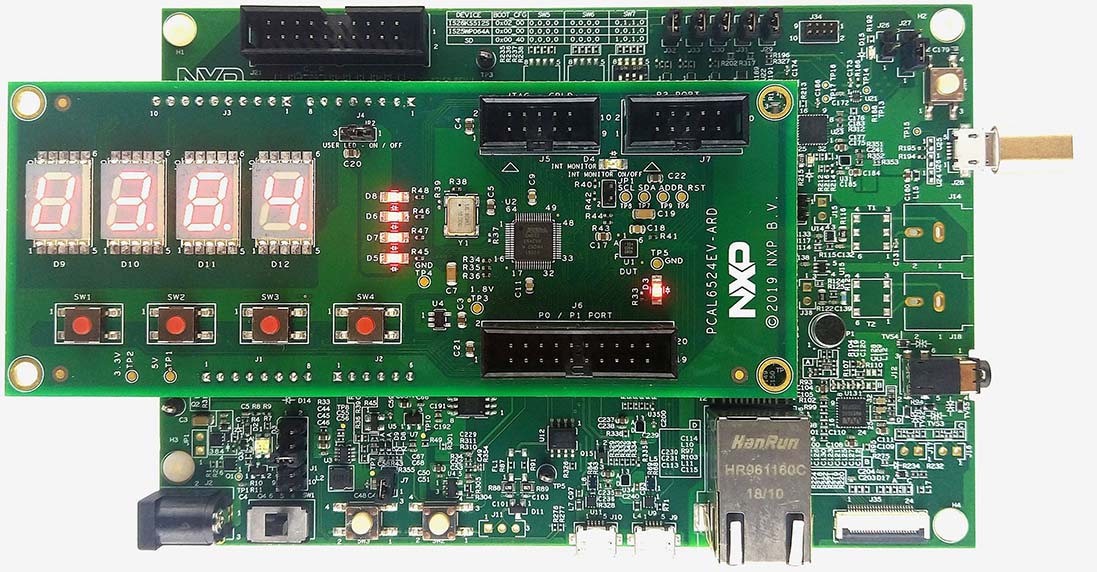
Figure 1 shows the required hardware for operation of the PCAL6524EV-ARD daughter board with IMXRT1050 EVK. The following items are necessary:
- One IMXRT1050-EVK board
- One PCAL6524EV-ARD daughter board
- One USB-A / USB Micro-B cable
- A PC with Windows 10 operating system
The IMXRT1050 EVK mother board can be powered by one of three methods:
-
Connecting an external 5VDC power supply to the barrel power
connector (
J2) on the board -
Connecting a USB cable from the PC to the Micro-B USB connector
(
J9) on the board -
Connecting a USB cable from the PC to the USB connector
(
J28) on the board. When the PC is connected in this fashion, the USB port can simultaneously act as a debug interface. Therefore, by using a single USB cable connected toJ28, the EVK can be powered and at the same time linked to the PC for data exchange.
The older USB ports (from PC) are not able to deliver the necessary
current (500 mA). Before establishing the communication, use an
external power supply (connected to J2).
From J1 on the EVK board (see Figure 1) the user can select the power
configuration for the mother board. For further details, refer to the
MIMXRT1050 EVK board hardware user's guide.
To configure the hardware and workstation, complete the following procedure:
-
Configure the suitable power configuration of EVK (
J1). If usingJ28for power supply, theJ1jumper shall be placed in position 5-6. If using an external power supply (connected toJ2), the jumperJ1will be placed in position 1-2 - Insert the PCAL6524EV-ARD daughter card on the Arduino connector of the EVK (see Figure 1)
-
Using USB connector
J28, connect the EVK board to a USB port on the computer - Install the IMXRT1050 target firmware (download from NXP site and see UM11581, Arduino Arduino shields GUI and firmware installation manual for step-by-step instructions)
- Install GUI application (see UM11581, Arduino shields GUI and firmware installation manual )
- Open the GUI application to operate the device from the PC
Figure 2 shows the boards during the operation.
4.2 Using the PCAL6524EV-ARD with an LPCXpresso55S69 Development Board
Figure 3 shows the required hardware for operation of the PCAL6524EV-ARD and LPCXpresso55S69 EVK board. This configuration consists of:
- One LPCXpresso55S69 EVK board
- One PCAL6524EV-ARD daughter board
- One USB-A / USB Micro-B cable
- A PC with Windows 10 operating system
The LPCXpresso55S69 development board is equipped with four USB
Micro-B connectors: P5, P6, P9 and P10. The board can be powered
through any USB port. Using P6 USB connector to connect the board to
the PC simplifies the start-up operation because P6 is designated for
debugging and the USB cable thus accomplishes two tasks at the same
time: powering the board and serving as a data link between the EVK
board and PC. For more details regarding power-up and operation of the
LPCXpresso55S69 development board, see the
LPCXpresso55S69/LPCXpresso55S28
development board user manual.
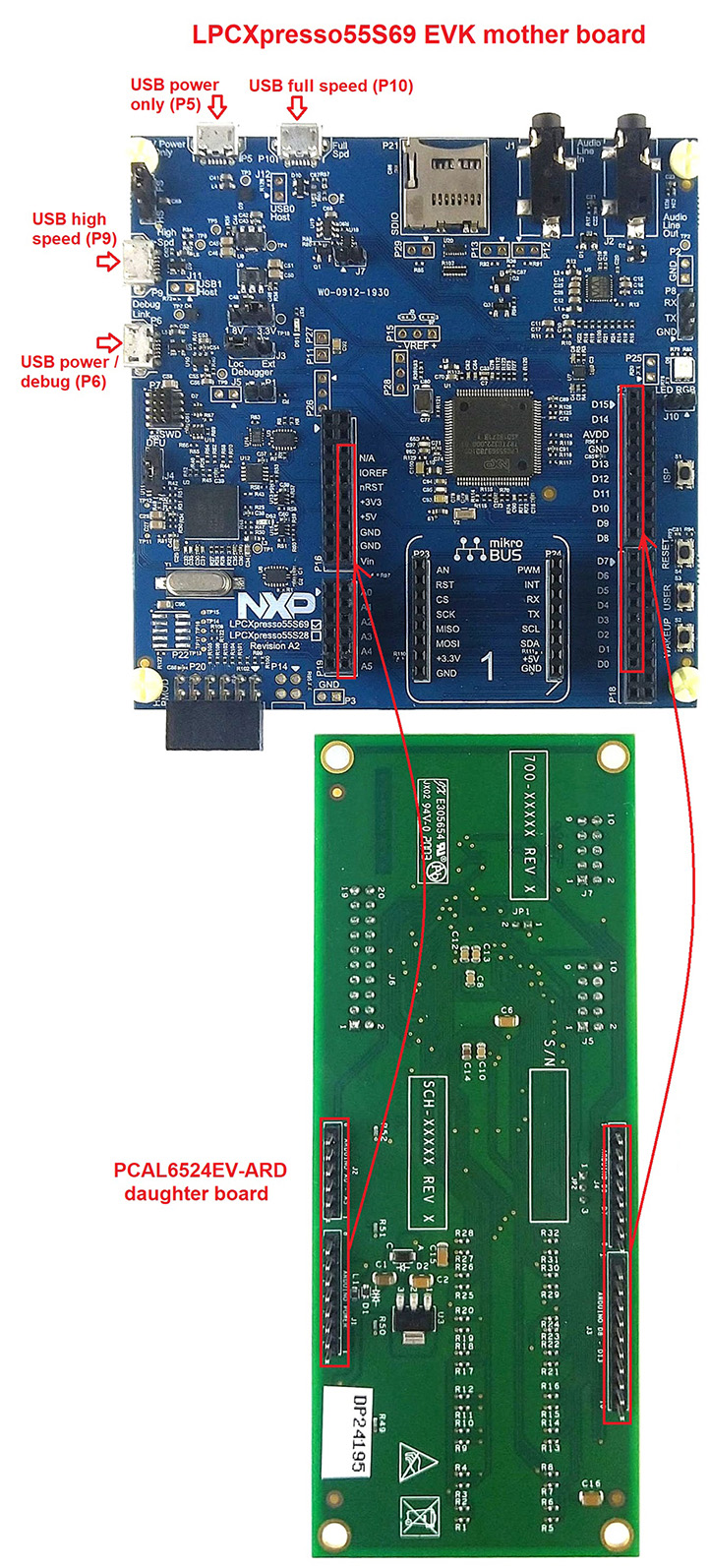
The following steps describe how to assemble, program and operate the configuration shown in Figure 3.
-
Insert the PCAL6524EV-ARD daughter card to
P16–P19connectors located on LPCXpresso55S69 development board (see the marked pins ofP16–P19, Figure 5) - Connect the development board using port
P6USB port of PC - Install the LPCXpresso55S69 target firmware (download from NXP site and read the EVK_Firmware_And_GUI_Install_Guide_For_Arduino_Boards instruction file)
- Install GUI application on PC (see the instruction file called out in the previous step)
- Open the GUI application to operate the device from the PC
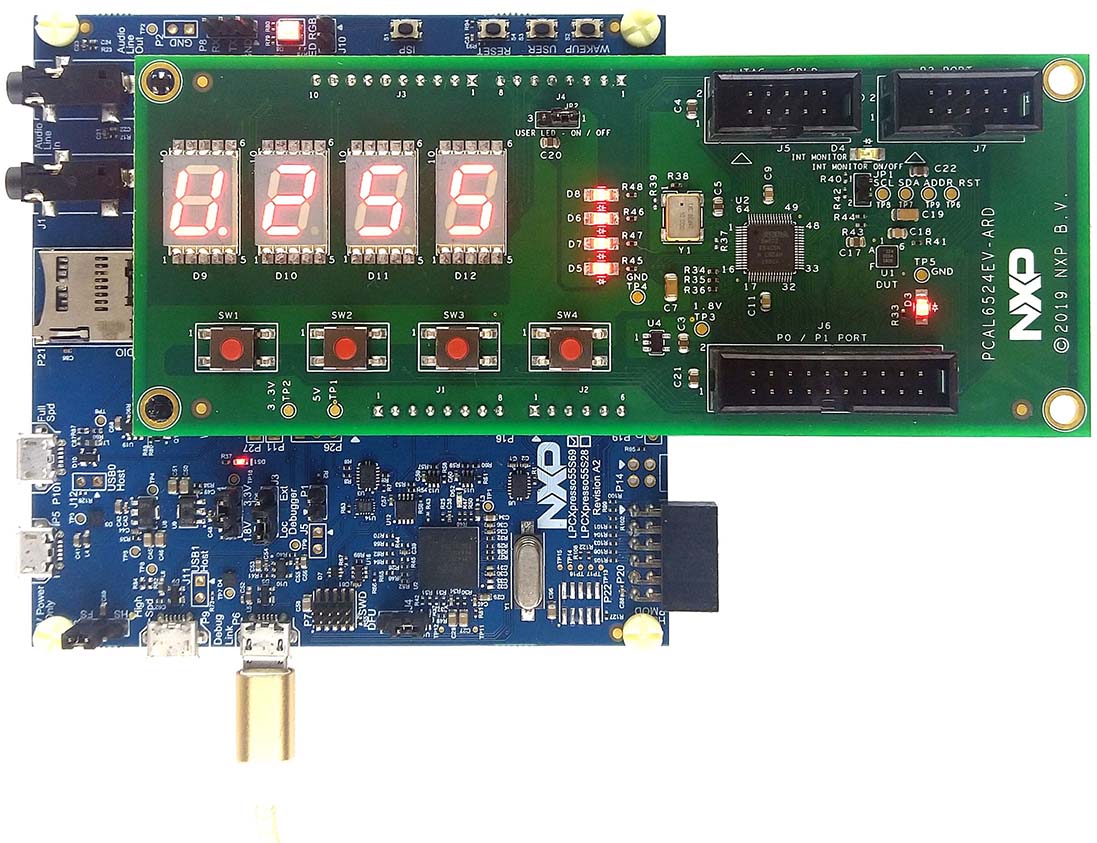
Figure 4 shows the two boards in operation.
4.3 Using the PCAL6524EV-ARD with an i.MX 8M Mini LPDDR4 EVK Board
When an i.MX 8M Mini LPDDR4 EVK board is used with the PCAL6524EV-ARD
board, a third board (IMX8MMINI-IARD interposer board) must be used,
especially designed and built as EVK – daughter board interconnection.
The EVK board i.MX 8M Mini LPDDR4 is not equipped with an Arduino
port; instead it has a 2 x 20 pin expansion connector (J1003, see i.MX
8M Mini LPDDR4 EVK user manual). J1003 is a multipurpose port,
containing various digital I/O lines, including specialized
I²C and SPI buses. Starting from the expansion connector
pin chart, an Arduino port interposer board was developed, with the
role of signal-to-signal bridge between the 2 x 20 connector pins on
the i.MX 8M Mini LPDDR4 EVK and the mated connectors of the Arduino
port present on the PCAL6524EV-ARD daughter board.
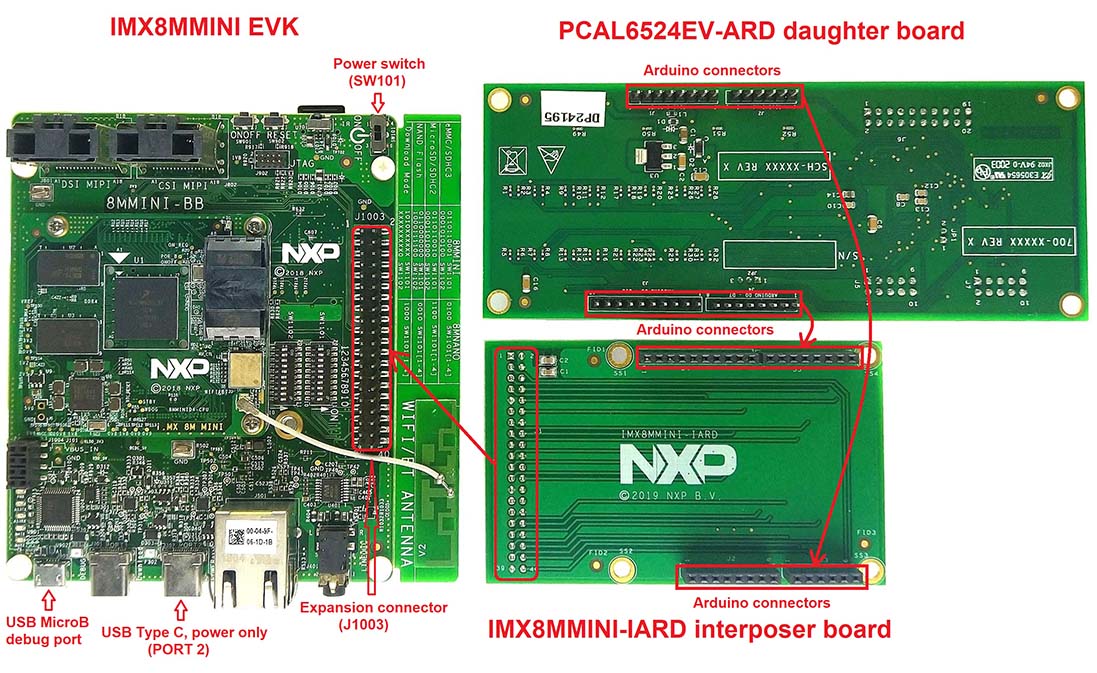
To operate the setup, along with the EVK and the daughter board, a third board must be included in the setup assembly. Figure 5 shows the necessary boards and how these boards are connected. The configuration consists of:
- One i.MX 8M Mini LPDDR4 EVK board
- One PCAL6524EV-ARD daughter board
- One IMX8MMINI-IARD interposer board
- One USB-A / USB-C cable
- One USB-A / USB Micro-B cable
- A PC with Windows 10 operating system
It is recommended to attach the PCAL6524EV-ARD to the Arduino
connectors of the IMX8MMINI-IARD interposer board first and then the
resulting assembly to the i.MX 8M Mini LPDDR4 EVK. This can be done by
plugging J1 connector located on the interposer board to J1003
connector on the EVK.
To power-up the EVK, a USB-C type cable connected to PORT 2 of the EVK
is used. The power switch SW101 on the EVK board must be set to ON
position to power-up the setup. Data communication is achieved by
routing a separate USB (Micro-B type) cable from a USB port on the PC
to debug port (J901) on the EVK (see Figure 5 and Figure 6).
The user may find details regarding power-up and operation of the setup assembly in 8MMINILPDDR4-EVK user manual and IMX8MMINI-IARD user manual .
To configure and operate the setup, follow the below steps:
- Insert the PCAL6524EV-ARD onto the IMX8MMINI-IARD interposer board Arduino connectors (located on the top side)
-
Attach IMXMMINI-IARD connector plug
J1(located on the bottom of the board) intoJ1003expansion board located on the top side of i.MX 8M Mini LPDDR4 EVK (see Figure 5) - Power-up the EVK board using a USB Type C cable attached to PORT 2
-
Connect the EVK to the PC, using a USB Micro-B cable, attached to
J901debug port - Place
SW101in ON position to power-up the boards - Install the MIMXRT1050 target firmware ( download UM11581, Arduino shields GUI and firmware installation manual from NXP site)
- Install GUI application on the PC (see the instruction file referenced in the above step)
- Open the GUI application to operate the device from the PC
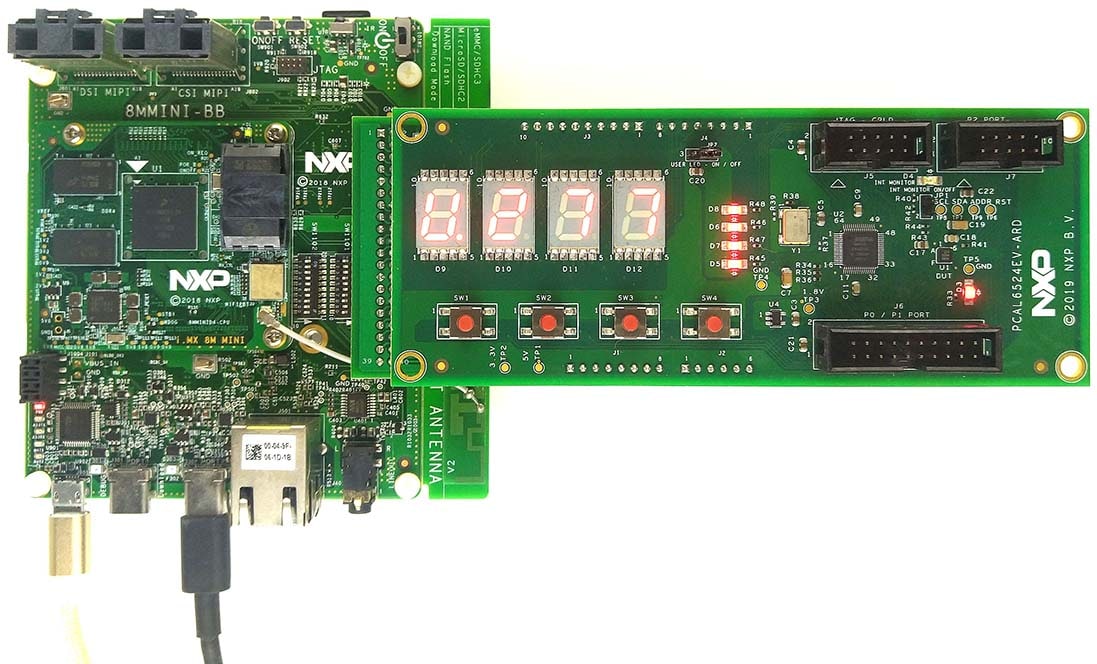
4.4 Using PCAL6524EV-ARD with Another Device
The PCAL6524EV-ARD daughter board can be operated with other EVK board, which has an Arduino port. There are two options to connect the board: using another EVK equipped with an Arduino port and an EVK without Arduino port. In the first case, a firmware shall be developed according to PCAL6524EV specifications and then simply attach PCAL6524EV-ARD daughter board to the EVK to operate the board. In the second case, using the pin chart of Arduino connectors, make the necessary electrical connections (for power, I²C-bus and control lines) and develop the desired firmware, assuring compliance with IC specifications. Use PCAL6524 data sheet to read details about internal registers of the DUT IC and data exchange between internal controller and the EVK. Assure correct electrical connections and avoid data conflicts on the signal lines to prevent IC damage.
Design Resources
Board Information
Software
On this page
- 1.1
Kit Content and Packing List
- 1.2
Assumptions
- 1.3
Static Handling Requirements
- 1.4
Minimum System Requirements